Skip to content

Rozetpix is in development; it isn't on the Shopify App Store yet, pricing coming soon. Early access

When the price changes,
the picture does too.

Rozetpix prints the price from Shopify onto your product image, inside your own frame. Change the price and the image is printed again; your Meta, TikTok and Google Ads feeds show the new one.

Join early access

Product in Shopify

Change it in Shopify:

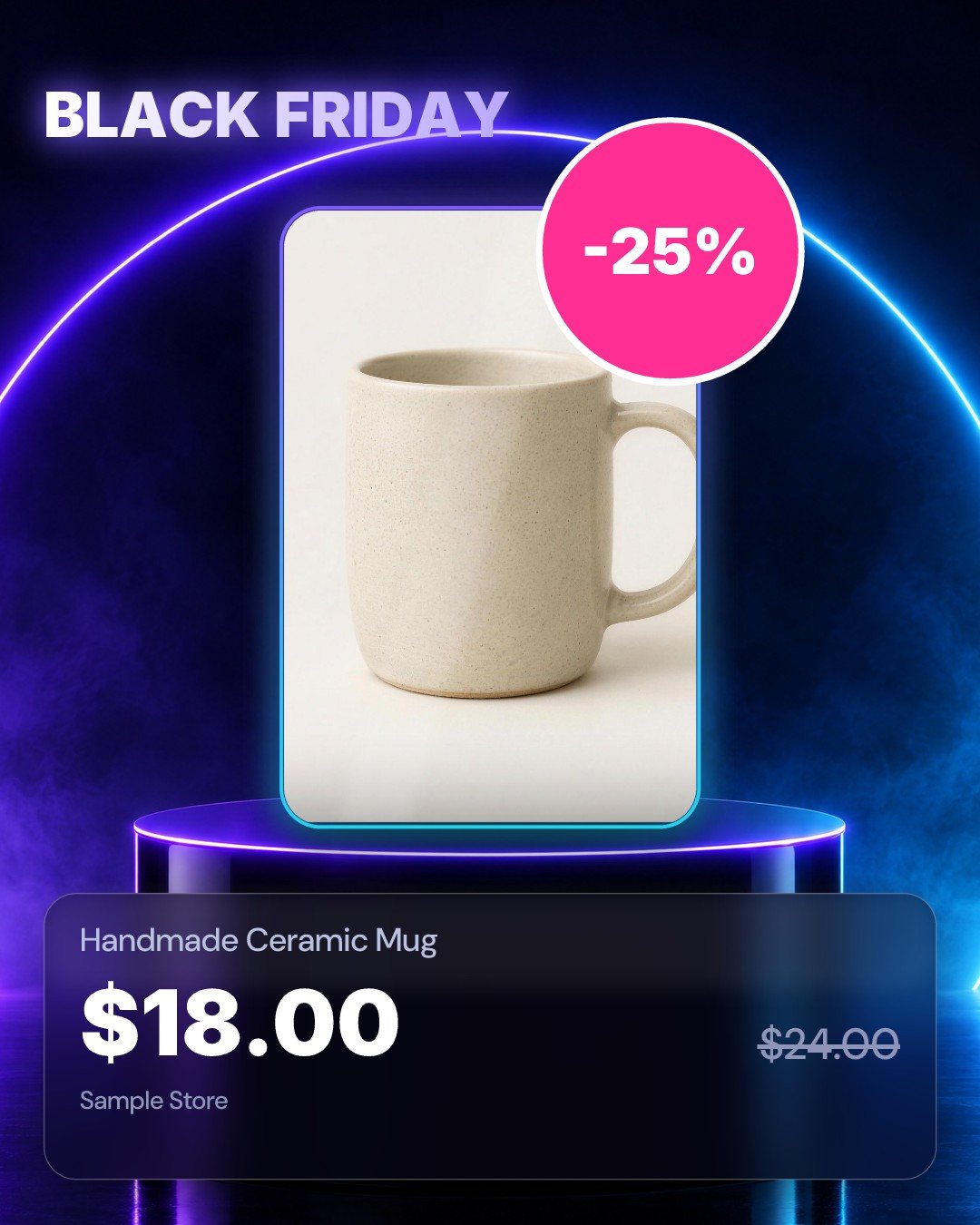
Compare-at $24.00, sale price $18.00. The 25% on the badge is calculated from the two and rounded down.

A sample product's 4:5 image printed by the Rozetpix engine with the Black Friday template: the store's Black Friday heading on top, a -25% badge, the sale price and the old price struck through.

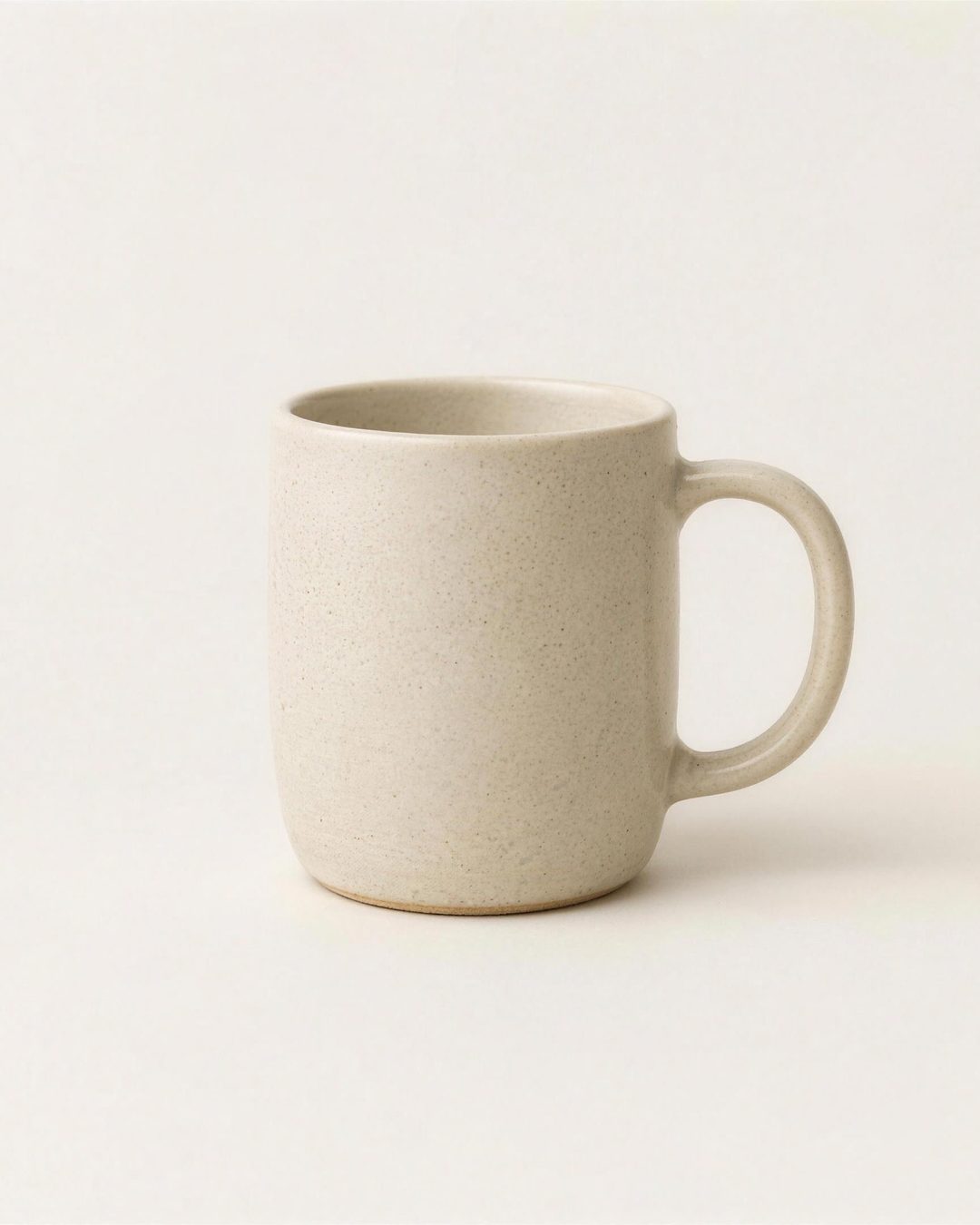
Unframed Raw image in Shopify
No price or discount on the image.

Framed Printed by Rozetpix
Discount, compare-at price and offer on the image.

Line sent to the Meta feed

<g:price>24.00 USD</g:price>
<g:sale_price>18.00 USD</g:sale_price>
<g:availability>in_stock</g:availability>
<url>…/neon/portrait-b64249b987c817e4.jpg</url>

Measure it on your own catalog: compare Rozetpix's feed against your current images with a Meta A/B test.

Sample products; the photos were generated with AI, the badges and prices were printed by the Rozetpix engine. Prices are examples.

Reads from Shopify, writes to three channels.

  • ShopifyPrice, compare-at, stock, image
  • Meta catalogXML · square, 4:5, 9:16
  • TikTok catalogXML · 9:16
  • Google AdsCSV · square

Shopify, Meta, TikTok and Google are trademarks of their respective owners. Rozetpix is not affiliated with them.

Your frame, Shopify's price.

You make the frame in Canva or any other tool and export it as a transparent PNG. You decide in the panel what goes where; Rozetpix fills in the text from the current Shopify data every time it prints.

  • Product imageYour main Shopify image; fit inside the area or filling it.
  • TextTitle, brand, price and compare-at price. The compare-at price is struck through.
  • Discount badgeOnly on a real discount; the engine works out the percentage.
  • Stock badgePrints when the count reaches the threshold you set.
  • FrameTransparent PNG, placed under or over the product.
The slot list in the Rozetpix panel: position, size, font and colour fields for the product image, title text, price text and discount badge.
Today's slot editor, a real screenshot from the development build. The panel is in Turkish for now.
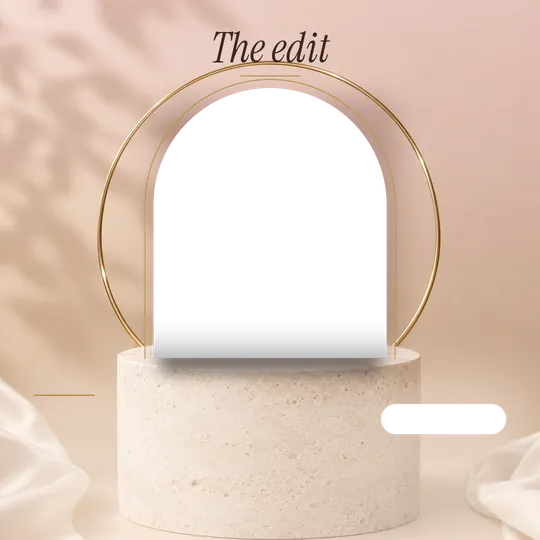
Silk frame: a 1080 × 1080 PNG with a transparent arch-shaped product window, The edit heading on top and a marble plinth below.
The uploaded frame: a 1080 × 1080 PNG with a transparent product window.
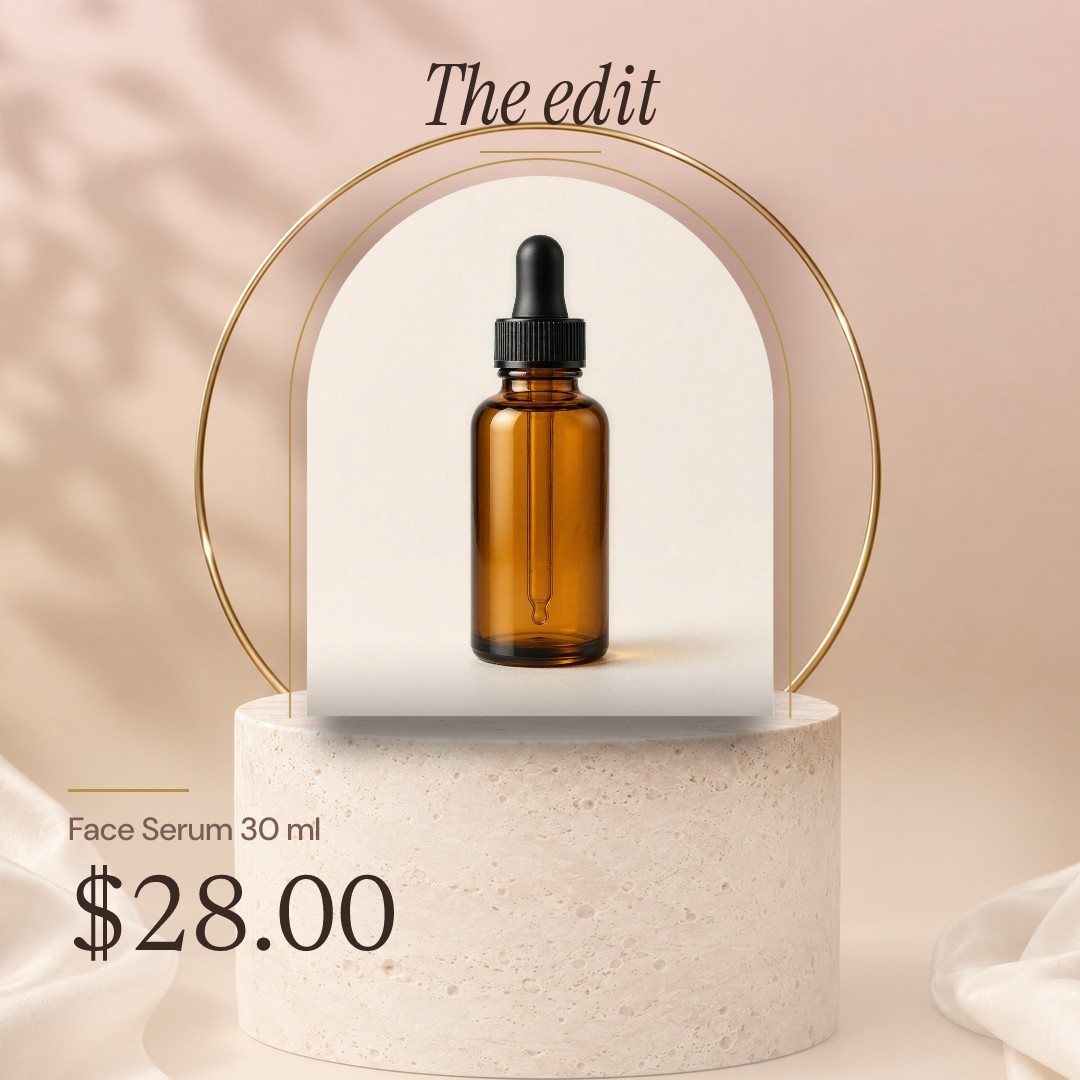
A face serum printed in the Silk frame: the product in the arch window, title and $28.00 below. No discount, so no badge.
The same frame, as printed by the engine.
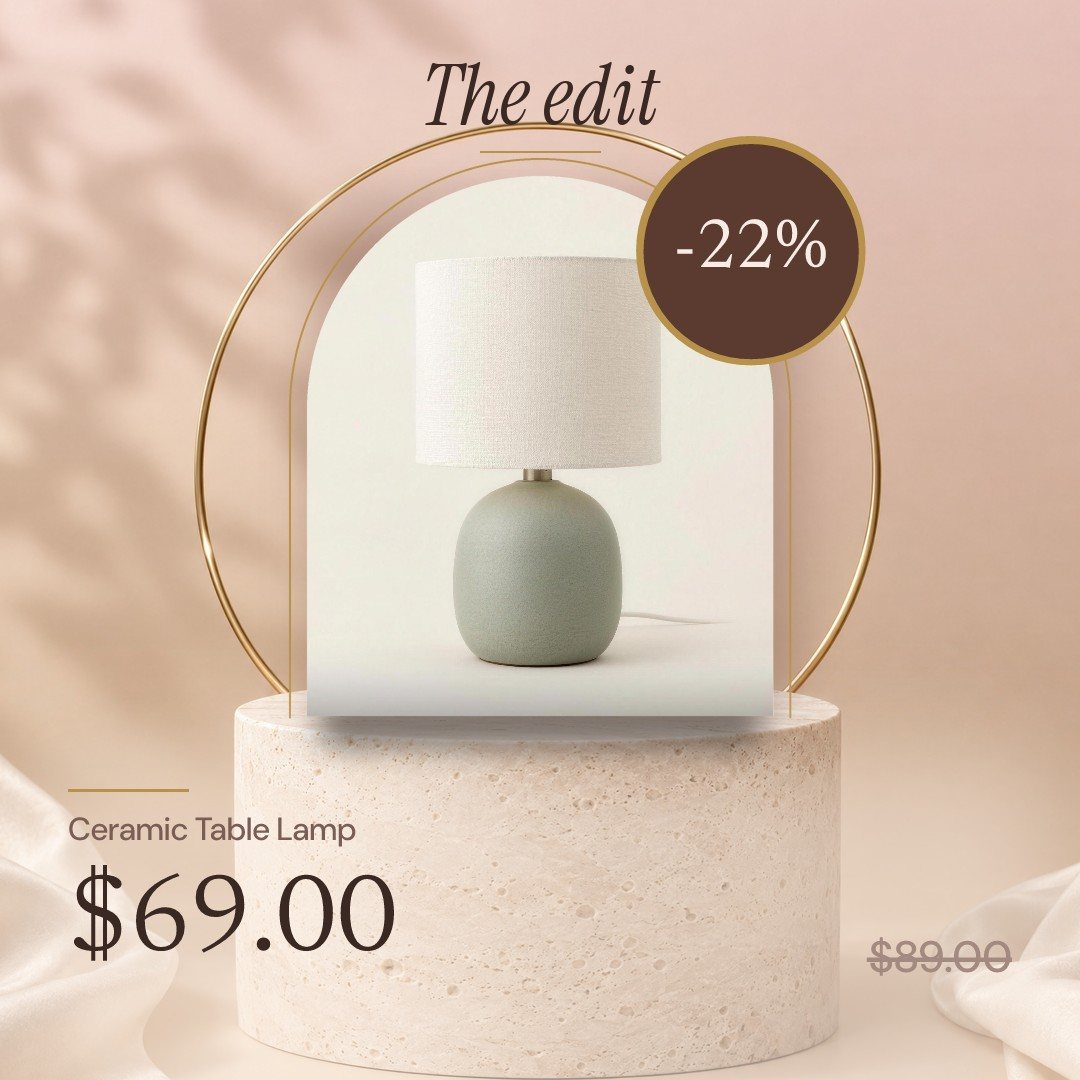
  • A ceramic table lamp printed in the same Silk frame: a -22% badge, the sale price and the old price struck through.

Title, price and badge come from Shopify for each product; the serum has no discount so no badge was printed, the lamp has one. The edit heading is part of the frame: text the store wrote.

Your offer on the image, the numbers from Shopify.

Pick one of the ready-made sales templates or upload your own frame. The discount percentage, compare-at price and stock count are written from your store's real values on every print; you write the offer line.

Meta added price, strikethrough price, percentage-off and free-shipping labels to catalog ads in its own product, but only in Facebook Feed and in single-image or carousel formats. Rozetpix carries the same information in your own frame to every channel and to 1:1, 4:5 and 9:16. Source: Search Engine Land

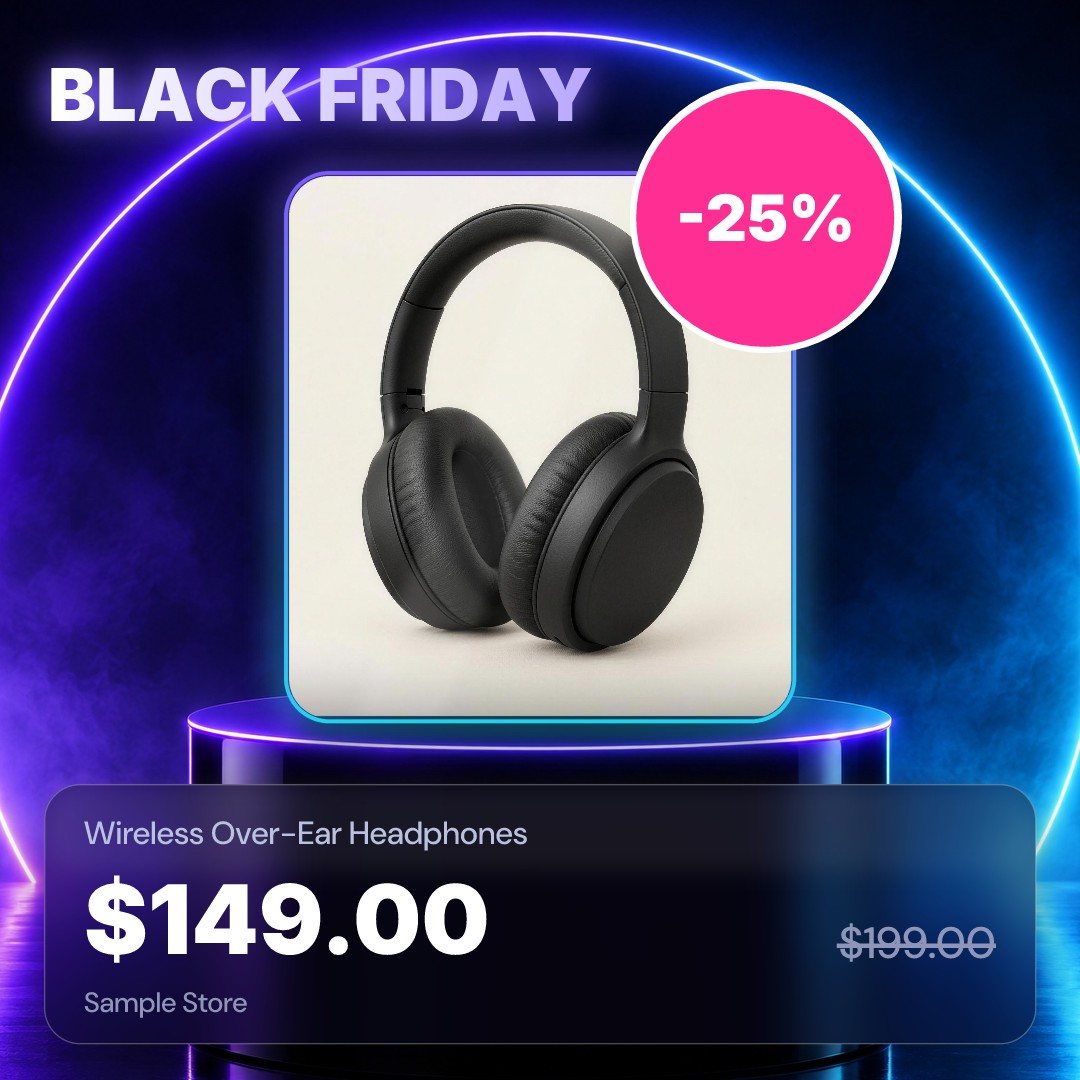
  • Wireless headphones, Black Friday template: a -25% badge, $149.00 and $199.00 struck through.

    Black Friday

    Dark stage, neon edge light, a big percentage badge.

    Black Friday heading text the store wrote

  • Face serum, Silk template: no discount, no badge, $28.00.

    Silk

    Light backdrop, arch window, serif price. With no discount, no badge prints.

    The edit heading text the store wrote

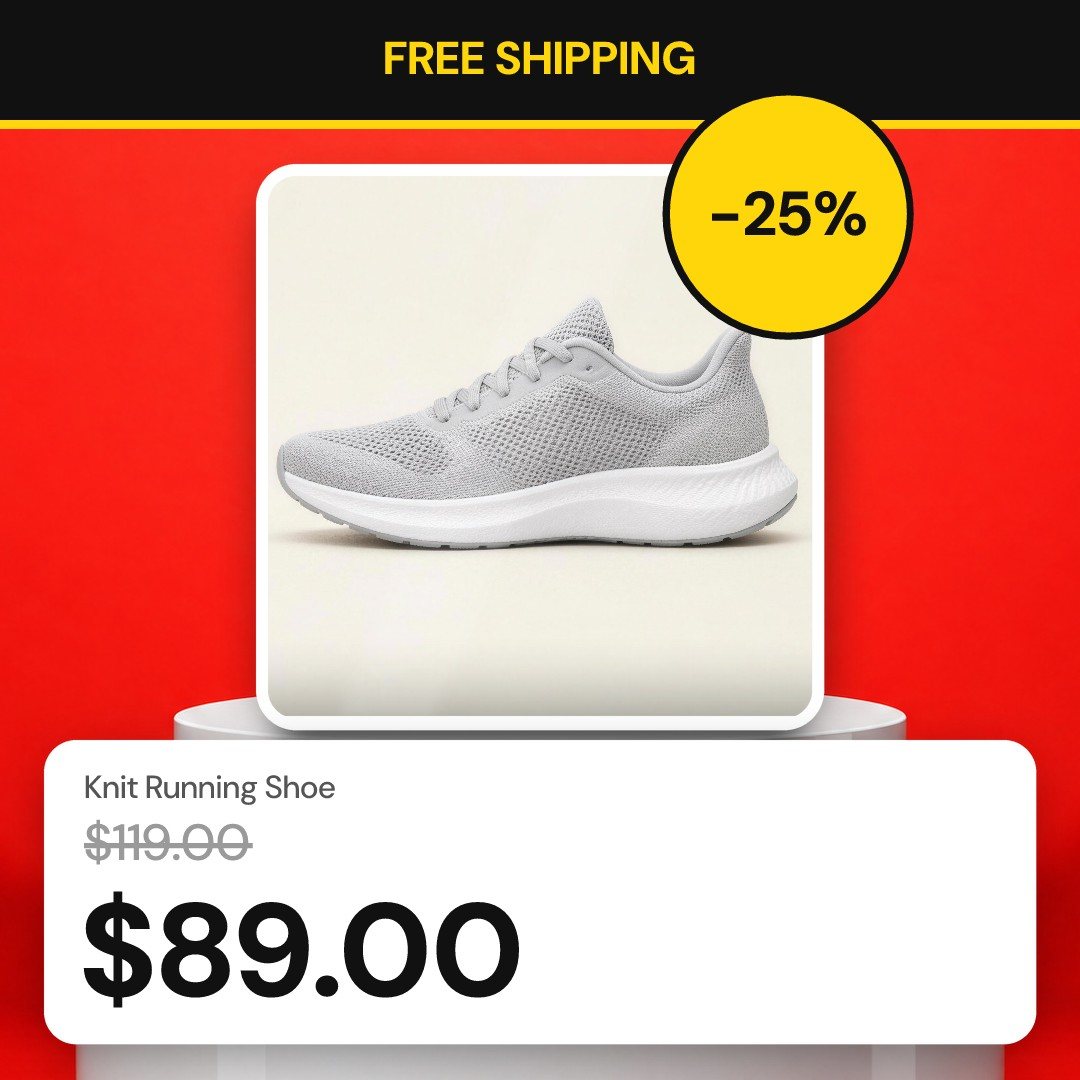
  • Running shoe, Offer band template: Free shipping band, a -25% badge, $89.00 and $119.00 struck through.

    Offer band

    A band on top, a big price below. The band is a fixed text slot; Rozetpix doesn't check shipping terms.

    Free shipping text the store wrote

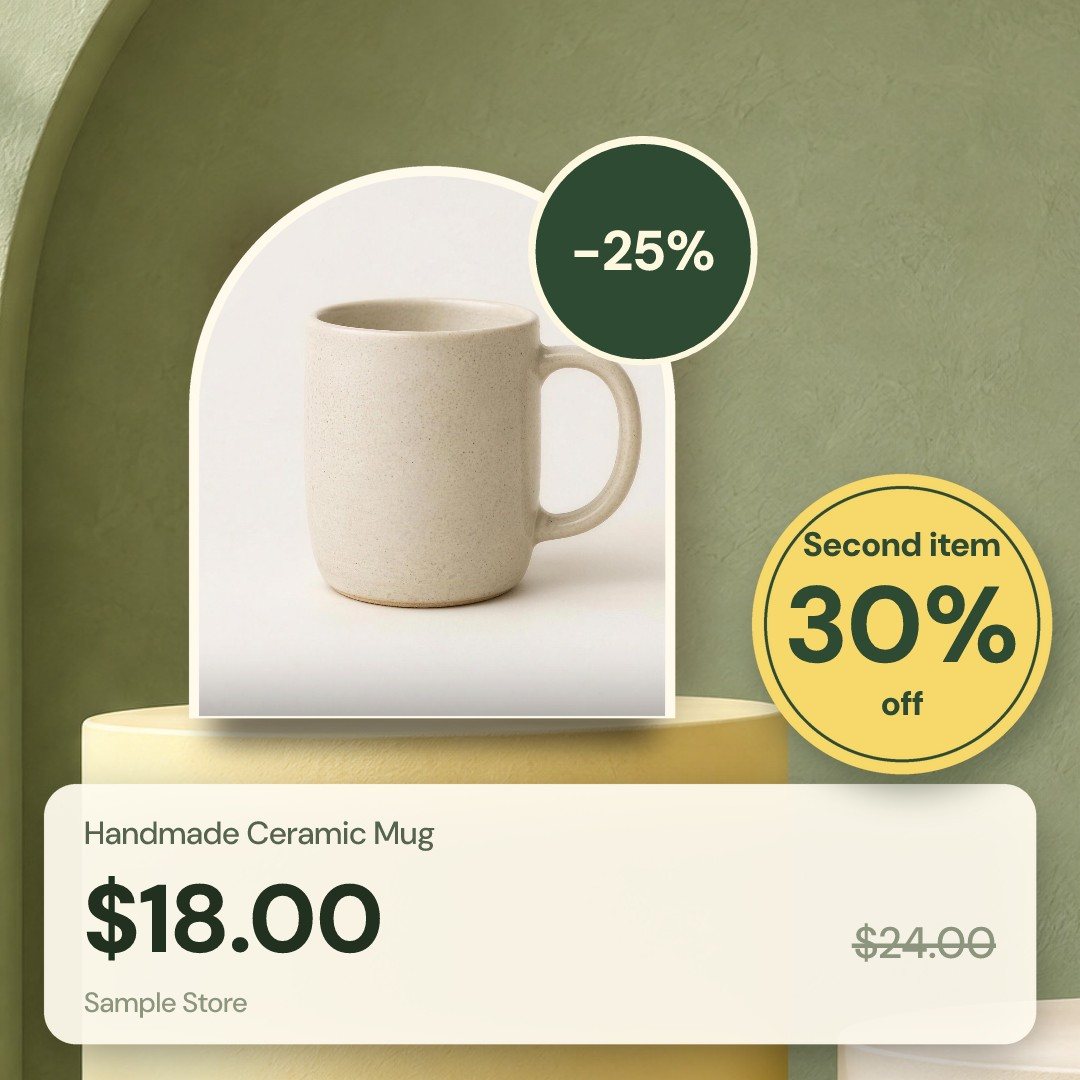
  • Ceramic mug, Second item template: a -25% badge and a Second item 30% off slot.

    Second item X% off

    The product's own discount sits in the percentage badge, the basket offer in the slot beside it. You set the basket discount up in Shopify; Rozetpix doesn't calculate it.

    Second item 30% off text the store wrote

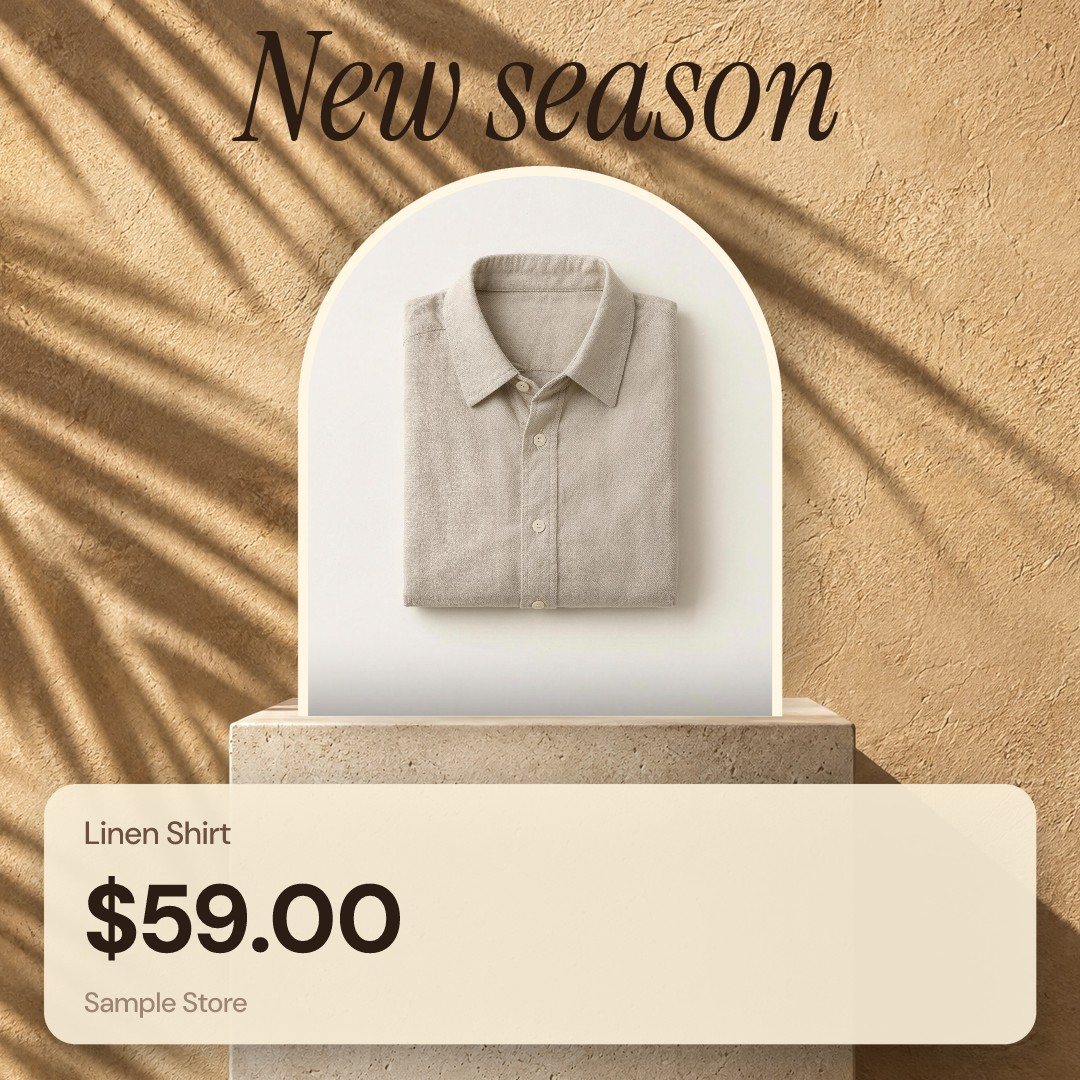
  • Linen shirt, New season template: no discount, $59.00.

    New season

    Warm natural stage, a large script heading. Without a discount only the price prints.

    New season heading text the store wrote

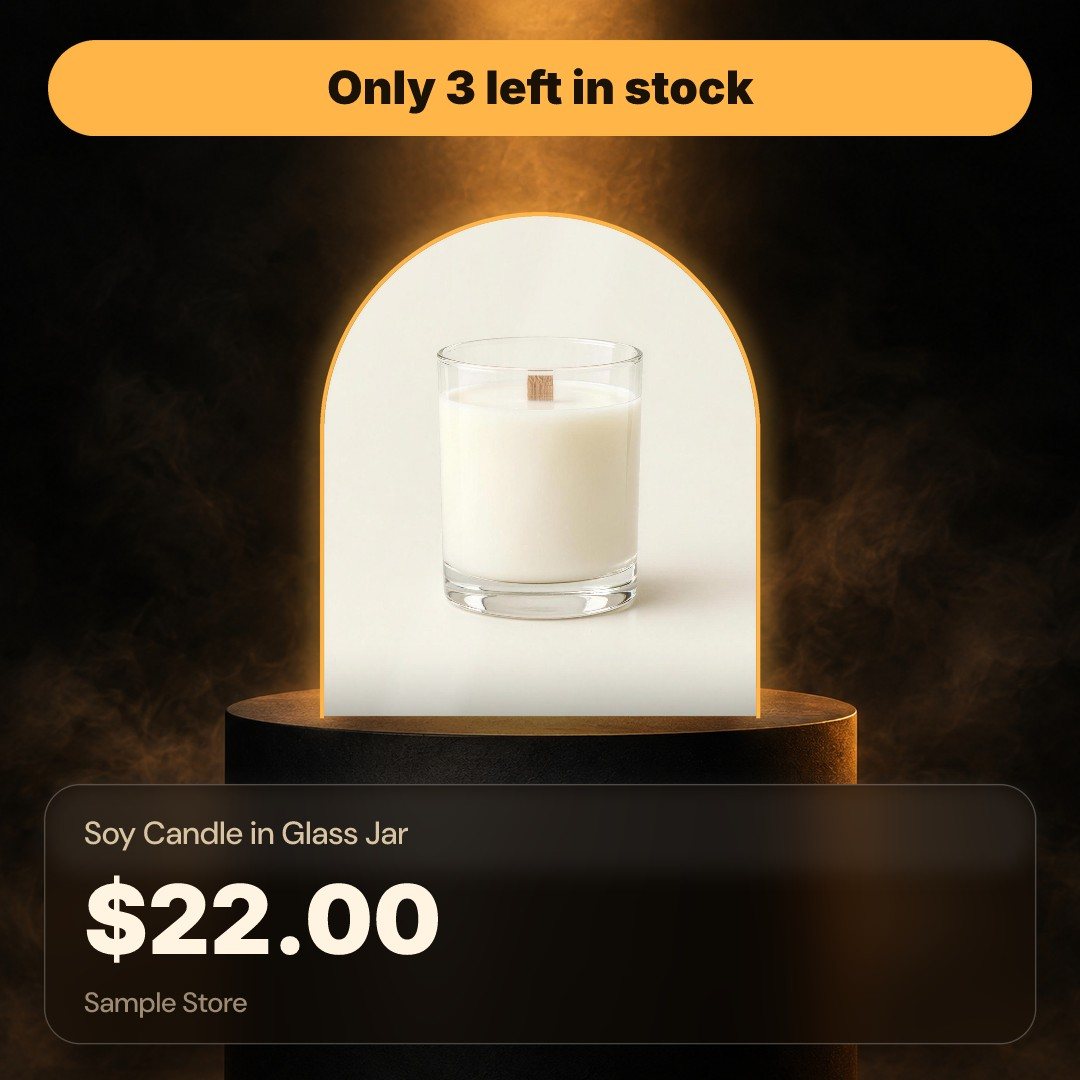
  • Soy candle, Low stock template: an Only 3 left band and $22.00.

    Low stock

    The band prints only when Shopify's stock count drops to 5 or below; the count comes from Shopify and is never made up.

Sample products were generated with AI; the images were printed by a dry run of the Rozetpix engine. Prices are examples. Every template prints in square, 4:5 and 9:16.

One product, three channels, each in its own size.

The same product goes to each channel in the size and format that channel expects. You add the feed link to the channel once.

4:5 image for the Meta feed.
4:5 for the Facebook and Instagram feed. The same item also has square and 9:16.
  • Each item gets three images: square, 4:5 and 9:16, each marked with Meta's aspect-ratio tag.
  • No discount means no sale_price and no badge on the image.
  • Sold-out products stay in the feed as out_of_stock.
<g:id>5200000001</g:id>
<g:title>Handmade Ceramic Mug</g:title>
<g:price>24.00 USD</g:price>
<g:sale_price>18.00 USD</g:sale_price>
<image>
  <url>https://cdn.rozetpix.com/r/…/ikinci/square-5479252b5529f8c6.jpg</url>
  <tag>commerce_pdp_standard_preferred</tag>
</image>
<image>
  <url>https://cdn.rozetpix.com/r/…/ikinci/portrait-017a48644d9d8c9c.jpg</url>
  <tag>ASPECT_RATIO_4_5_PREFERRED</tag>
</image>
<image>
  <url>https://cdn.rozetpix.com/r/…/ikinci/story-7ec452eac9d39d3e.jpg</url>
  <tag>STORY_PREFERRED</tag>
  <tag>REELS_PREFERRED</tag>
  <tag>ASPECT_RATIO_9_16_PREFERRED</tag>
</image>
<g:availability>in_stock</g:availability>

One item from the Meta XML the engine wrote; long URLs shortened.

Four rules so no ad runs with the wrong badge.

These aren't settings you can switch off. It's how the engine works.

  1. A badge only on a real discount.

    Nobody types the percentage: it's worked out from the compare-at and sale prices and rounded down. Under one percent, no badge.

  2. No image with an old price goes into a feed.

    When a price changes, that product's image is printed again and published under a new file name. Until the new image is ready, the item doesn't go into the feed with the old-price image.

  3. No empty or halved feed is published.

    If the new feed is empty, or the number of eligible items drops below half of the last one, the previous feed stays in place and an error goes into the status log. If you shrank it on purpose, you approve it in the panel.

  4. Your main image in Google Shopping is left alone.

    Badged images only go into the Google Ads CSV. No Merchant Center feed is produced, so your product's main Shopping image stays as it is.

Example math: with your own numbers

Enter the monthly numbers from your ads manager. The lift in click-through rate is an assumption; only your own A/B test shows the real effect.

Frame, rule, link.

Setup is three jobs. After that, Rozetpix keeps the images and feeds current as prices change.

  1. Upload your frame

    Export it from Canva as a transparent PNG. In the panel, place the product image, the text and the badge; square, 4:5 and 9:16 can each have their own layout.

  2. Pick a rule

    Which frame for which product: by collection, tag, discount percentage or stock count. Without a rule, the default template is used.

  3. Add the feed link

    Add the link once as a data source in Meta, TikTok or Google Ads. The channel fetches the feed on its own schedule.

Questions

The product is still in development; these answers describe the current build.

How much is it?

Not decided yet. The price will be on this page once it's set.

Can I use Rozetpix now?

Not yet. It's in development and not on the Shopify App Store. When it opens, we'll let everyone on the early access list know.

Which channels does it write feeds for?

XML for Meta (Facebook and Instagram catalogs) and TikTok, CSV for Google Ads. It doesn't produce a Google Merchant Center feed.

Which e-commerce platform does it work with?

Shopify only.

What does it read from my store?

Catalog data such as product title, price, compare-at price, stock count, image and collections. It doesn't read orders or customers, and it asks Shopify for read-only access.

Printed images sit at a public address so the channels can fetch them. Each feed URL contains a long, unguessable key.

Will it change my products or prices in Shopify?

No. Rozetpix reads your product data and produces the images and feeds on its own side.

Do I need to connect my Canva account?

No. Export your frame as a transparent PNG and upload it. A file from any other tool works too.

How are prices written on the image?

In your store's currency: $24.00 for dollars, 1.099,99 TL for Turkish lira.

What if a product has no discount?

No badge is printed; the image shows the price only. A badge appears only when the compare-at price is higher than the sale price.

Join early access.

When Rozetpix opens, we'll send one email to this address. Nothing else.

We keep your email and optional store address only to tell you when Rozetpix opens. We don't add you to a marketing list or share it with anyone. Data is stored on Cloudflare's infrastructure (based in the US). Details and your rights: Privacy notice.